

How AI Learning Works
When Kasava’s AI analyzes commits, pull requests, bug reports, or other content, it makes predictions about categorization, severity, and other fields. If these predictions don’t match your preferences, you can correct them. Kasava tracks these corrections and:- Learns from corrections - Automatically identifies patterns in your corrections
- Applies patterns - Uses learned patterns to improve future predictions
- Adapts to your workflow - Customizes behavior for your specific project conventions
Where Patterns Are Applied
Your learned patterns actively influence AI behavior across all of Kasava’s AI-powered features:Commit Analysis
When new commits are analyzed (either through webhooks or historical sync), Kasava retrieves applicable patterns for your organization and repository. These patterns inform:- Semantic type classification (feature, fix, refactor, chore, etc.)
- Impact assessment (high, medium, low)
- Feature area categorization
- Terminology normalization
src/payments/** as “feature” instead of “chore”, future commits in that directory will be correctly classified.
Pull Request Analysis
When pull requests are opened or updated, learned patterns guide:- PR categorization and labeling suggestions
- Risk and complexity assessment
- Business value estimation
- Review priority recommendations
AI Chat
When you start a chat conversation, your learned patterns are automatically included in the AI’s context. This means:- The AI uses your preferred terminology when discussing your codebase
- Responses follow your categorization preferences
- Suggestions align with your project conventions
Task Analysis (Linear, Jira, Asana)
For connected project management integrations, patterns influence:- Issue type classification
- Priority recommendations
- Component/area tagging
- Effort estimation
Pattern Priority
When multiple patterns could apply, Kasava uses this priority order:- User-scoped patterns - Your personal preferences (highest priority)
- Repository-scoped patterns - Project-specific rules
- Organization-scoped patterns - Team-wide conventions
- Confidence score - Higher confidence patterns take precedence
Accessing AI Learning
Navigate to Settings → AI Learning from the sidebar.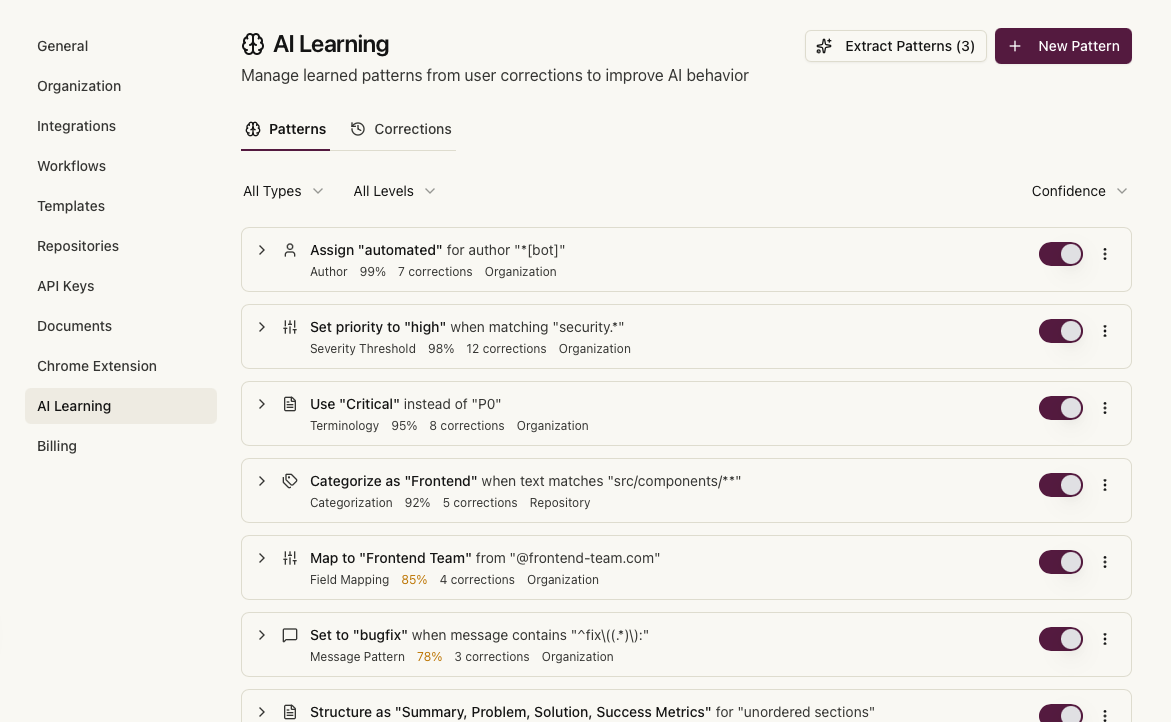
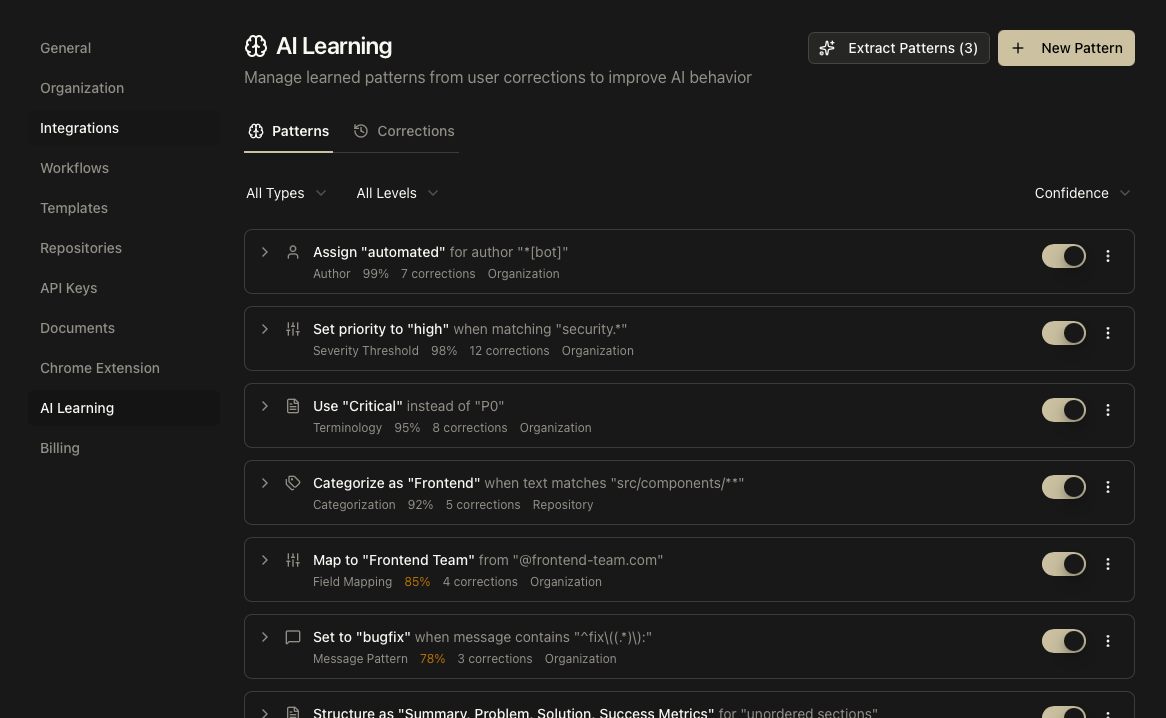
- Patterns - Learned rules that customize AI behavior
- Corrections - History of your corrections to AI predictions
Managing Patterns
Patterns are rules that tell the AI how to handle specific situations. They can be automatically learned from your corrections or manually created.Viewing Patterns
The Patterns tab displays all active and inactive patterns. Each pattern card shows:- Pattern rule - The matching condition (e.g., file path pattern, regex)
- Pattern type - The category of pattern (e.g., File Path, Terminology)
- Confidence score - How confident the AI is in this pattern (0-100%)
- Correction count - How many corrections contributed to this pattern
- Scope - Where the pattern applies (Organization, Repository, or User)
Viewing Source Corrections
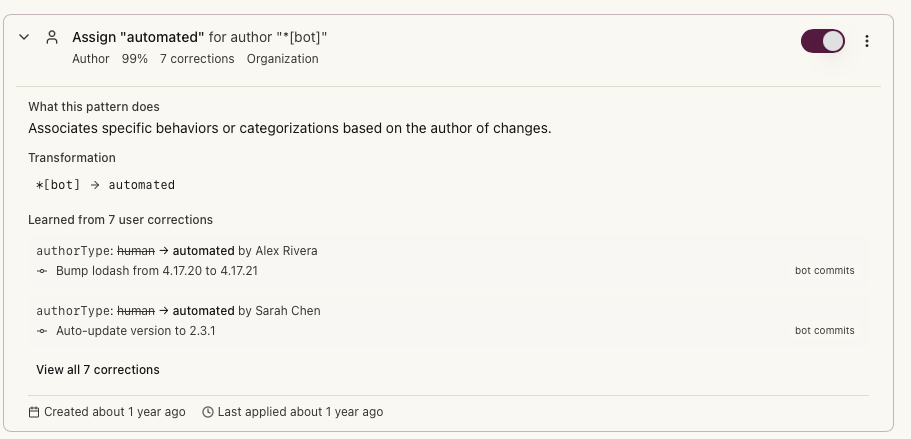
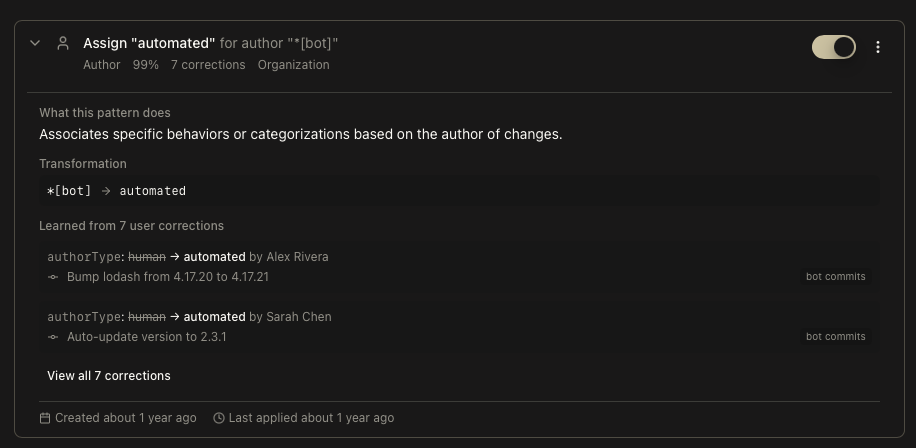
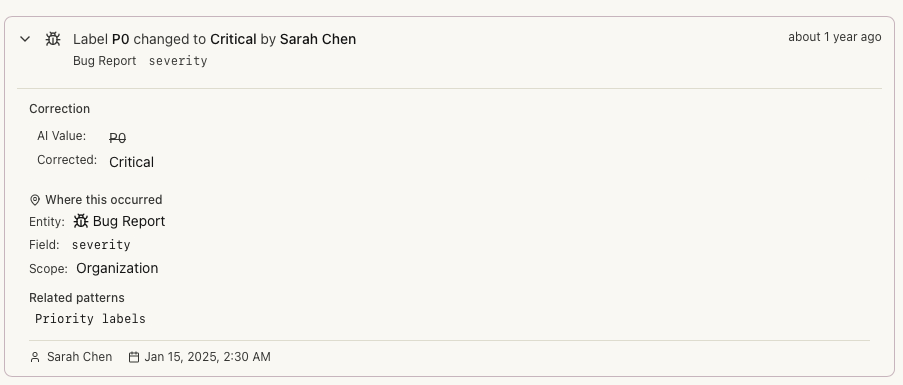
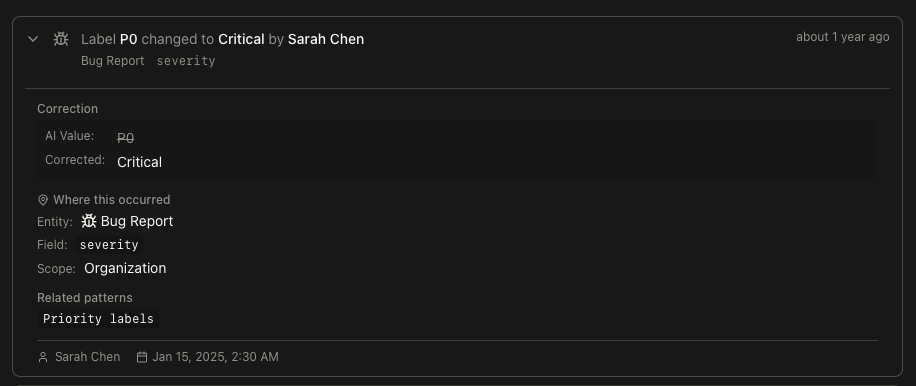
Click on any pattern card to expand it and see the corrections that contributed to this pattern. Click View all corrections to open a dialog with the full list. Each correction in the dialog shows:- Field change - The AI value (struck through) and your corrected value
- User attribution - Who made the correction
- Entity details - The type and name of the item that was corrected
- Metadata - Scope, related patterns, and timestamp
Ignoring Corrections
If a correction was made in error or is no longer relevant, you can ignore it without permanently deleting it.
To restore an ignored correction, click the eye icon again. The correction will be included in pattern learning once more.
Filtering and Sorting
Use the dropdown filters to find specific patterns:| Filter | Options |
|---|---|
| Pattern Type | All Types, File Path, Message Pattern, Author, Terminology, Categorization, Field Mapping, Severity Threshold, Formatting, Content Structure |
| Confidence | All Levels, High, Medium, Low |
| Sort By | Confidence, Usage Count, Date Created |
Enabling/Disabling Patterns
Toggle the switch on any pattern card to enable or disable it. Disabled patterns appear dimmed and won’t affect AI predictions.Creating Patterns Manually
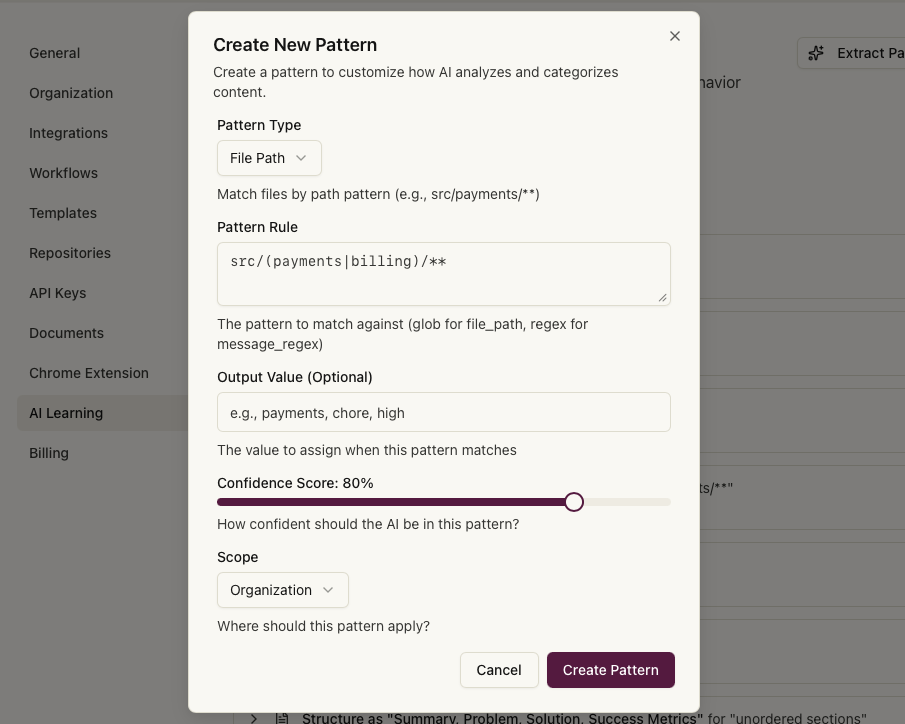
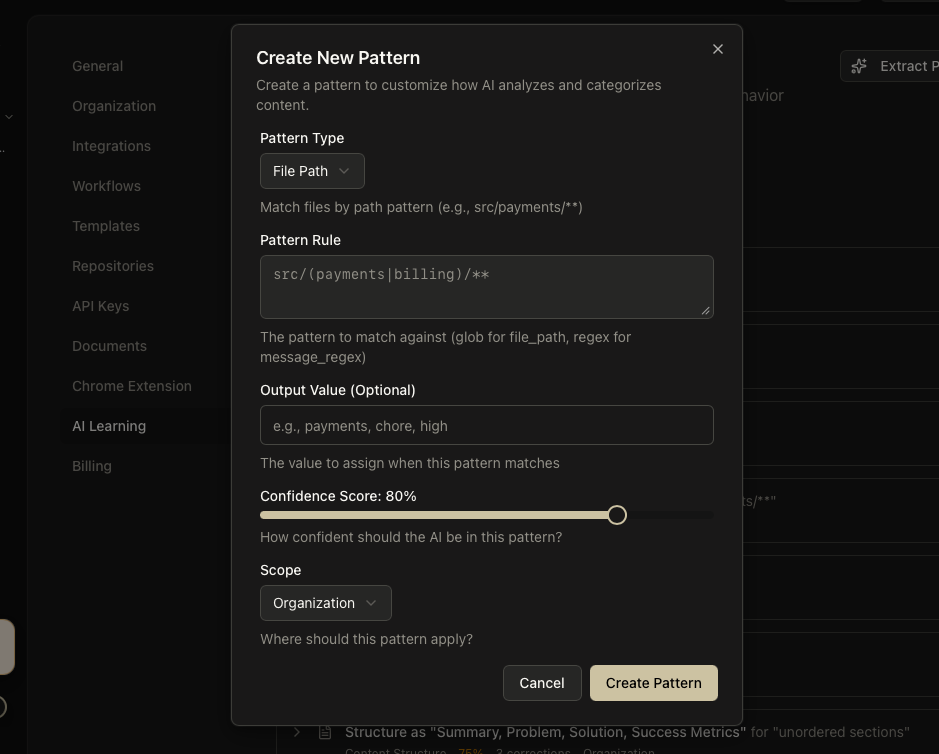
While patterns are typically learned automatically, you can create them manually for specific use cases.Select Pattern Type
Choose the type of pattern to create:
| Type | Description |
|---|---|
| File Path | Match files by path pattern (glob syntax) |
| Message Pattern | Match commit/PR messages by regex |
| Author | Match by author name or email |
| Terminology | Define preferred terminology |
| Categorization | Define how to categorize items |
| Field Mapping | Map AI output to your preferred format |
| Severity Threshold | Set thresholds for severity levels |
| Formatting | Define formatting preferences |
| Content Structure | Define content structure preferences |
Enter Pattern Rule
Enter the pattern rule using the appropriate syntax:
- File Path: Use glob patterns (e.g.,
src/payments/**,**/*.test.ts) - Message Pattern: Use regular expressions (e.g.,
^\[WIP\].*)
Set Output Value (Optional)
Enter the value to assign when this pattern matches (e.g.,
payments, chore, high)Set Confidence Score
Use the slider to set confidence (0-100%). Higher confidence means the AI will more strongly prefer this pattern.
Choose Scope
Select where this pattern should apply:
- Organization - Applies to all repositories in your organization
- Repository - Applies only to a specific repository
- User - Applies only to your personal analysis
Editing Patterns
Click the ⋮ menu on any pattern card and select Edit to modify an existing pattern. You can change:- Pattern rule
- Output value
- Confidence score
- Scope
Deleting Patterns
Click the ⋮ menu on any pattern card and select Delete. Confirm the deletion in the dialog that appears.Extracting Patterns from Corrections
When you have pending corrections that haven’t been analyzed, an Extract Patterns button appears in the header showing the number of pending corrections.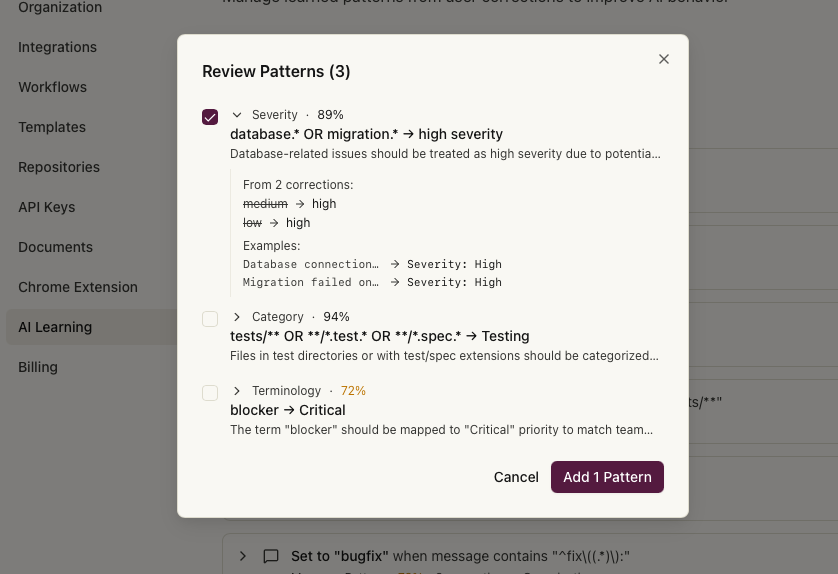
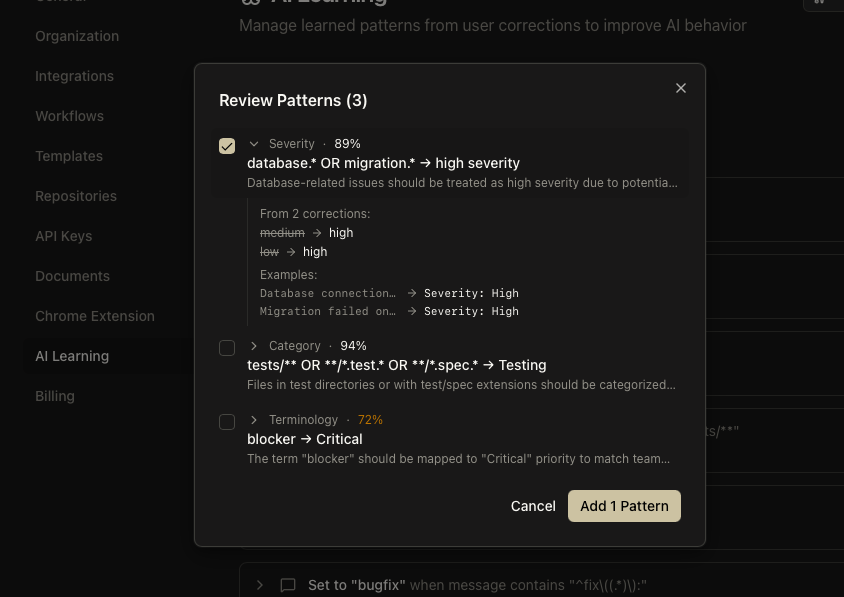
- Groups similar corrections together
- Identifies common patterns in your corrections
- Creates new patterns with appropriate confidence scores
- Updates existing patterns if they match new corrections
Correction History
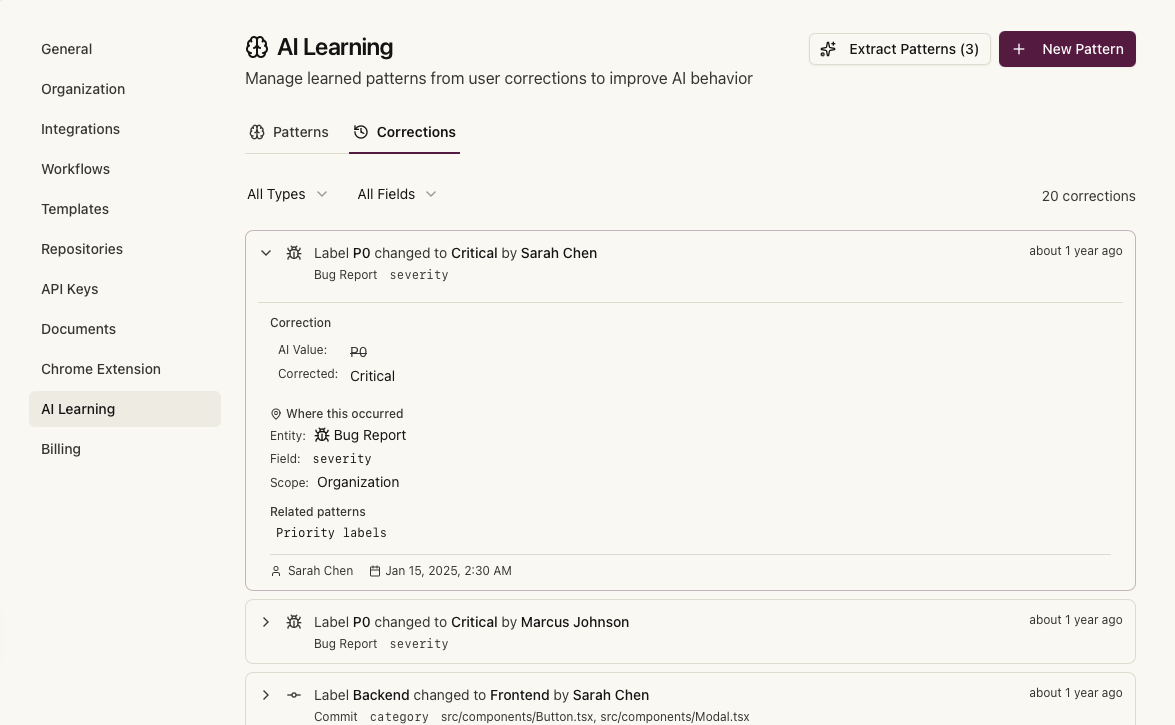
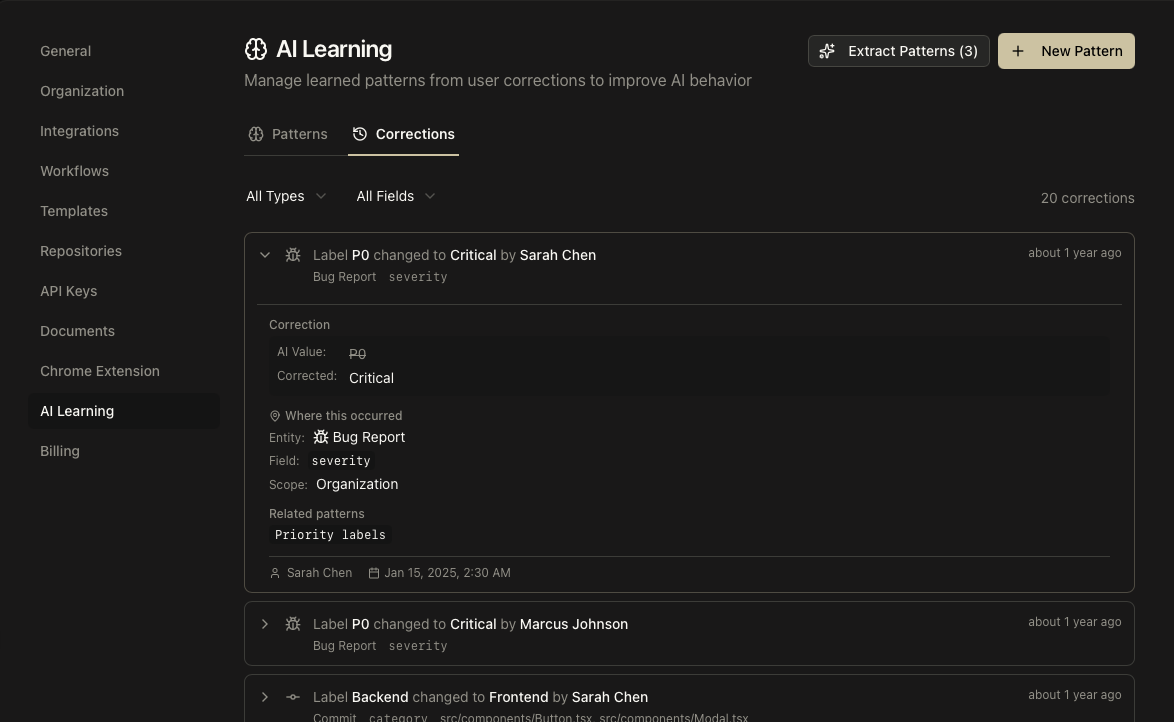
The Corrections tab shows all AI values you’ve corrected, helping you understand what the AI is learning.Viewing Corrections
Each correction card displays:- Entity type - What was corrected (Commit, Pull Request, Bug Report, Plan, etc.)
- Field path - Which field was corrected (e.g.,
category,severity) - AI value - What the AI originally predicted (shown with strikethrough)
- User value - What you changed it to (shown highlighted)
- Context - Related file paths, if applicable
- Timestamp - When the correction was made
Filtering Corrections
Filter your correction history by:| Filter | Options |
|---|---|
| Entity Type | All Types, Commits, Pull Requests, Bug Reports, Plans, Issues, Features |
| Field | Dynamically populated based on your corrections |
Pagination
Use the page controls at the bottom to navigate through your correction history. Each page shows 20 corrections.Pattern Types Explained
File Path Patterns
Match commits or changes based on file paths using glob syntax. Example: Match all files in the payments directoryMessage Patterns
Match commit or PR messages using regular expressions. Example: Match WIP commitsTerminology Patterns
Define preferred terms to standardize language across your project. Example: Use “customer” instead of “user” for business domain terminology.Categorization Patterns
Define rules for automatically categorizing items. Example: Commits touchingsrc/auth/** should be categorized as “security”.
Severity Threshold Patterns
Set rules for determining severity levels based on context. Example: Issues affecting payment flows should default to “high” severity.Best Practices
Start with Corrections
Rather than creating patterns manually, let the AI learn from your corrections:- Use Kasava normally
- Correct AI predictions when they’re wrong
- Periodically extract patterns from corrections
- Review and adjust confidence scores as needed
Use Appropriate Scope
- Organization scope - For team-wide conventions (e.g., terminology, categories)
- Repository scope - For project-specific patterns (e.g., file path rules)
- User scope - For personal preferences that shouldn’t affect others
Monitor Pattern Performance
- Check patterns periodically to ensure they’re still relevant
- Disable patterns that are no longer useful
- Update confidence scores based on accuracy
Keep Patterns Specific
More specific patterns with higher confidence produce better results than broad patterns with low confidence.Troubleshooting
Patterns not being applied
Patterns not being applied
Check that the pattern is enabled (toggle switch is on). Verify the pattern scope matches where you’re working. Try increasing the confidence score.
Too many false positives
Too many false positives
The pattern may be too broad. Edit it to be more specific or reduce the confidence score. Consider disabling and creating a more targeted pattern.
Extract Patterns button not appearing
Extract Patterns button not appearing
Corrections not showing up
Corrections not showing up
Ensure you’re viewing corrections for the correct organization. Check the entity type filter isn’t excluding your corrections.
How do I undo an ignored correction?
How do I undo an ignored correction?
Click the eye icon on any ignored correction to restore it. Restored corrections will be included in pattern learning again.
What happens to ignored corrections?
What happens to ignored corrections?
Ignored corrections remain in your history but are excluded from pattern extraction and learning. They can be restored at any time.