Demo Mode lets you explore all of Kasava’s features using pre-populated sample data. It’s the perfect way to understand what Kasava can do before connecting your own repositories.

What is Demo Mode?

Demo Mode provides a complete, interactive experience with a sample e-commerce platform called ShopFlow. This fictional project demonstrates all of Kasava’s capabilities with realistic data:
  • Sample Product - A fully configured product with linked repositories
  • Demo Dashboard - Work items, recent updates, and quick stats
  • Sample Bug Reports - Pre-analyzed bug submissions with AI insights
  • Demo Plans - Product Requirements Documents with AI enhancements
  • Sample Chat Threads - Example AI conversations about the codebase
  • Demo Integrations - Simulated GitHub, Linear, Jira, and Asana activity
  • Sample Workflows - CI/CD, testing, and monitoring configurations
  • Demo Documentation - Automated documentation updates
  • Sample Roadmap - Product planning and timeline views
In Demo Mode, all data is read-only. You can explore and interact with the interface, but changes won’t be saved. This prevents accidental modifications to sample data.

Enabling Demo Mode

You can toggle Demo Mode on or off at any time using the switch in the sidebar:
1

Find the Toggle

Look for the Demo Mode toggle at the bottom of the sidebar, near your user profile
2

Enable or Disable

Click the switch to turn Demo Mode on (shows sample data) or off (shows your real data)
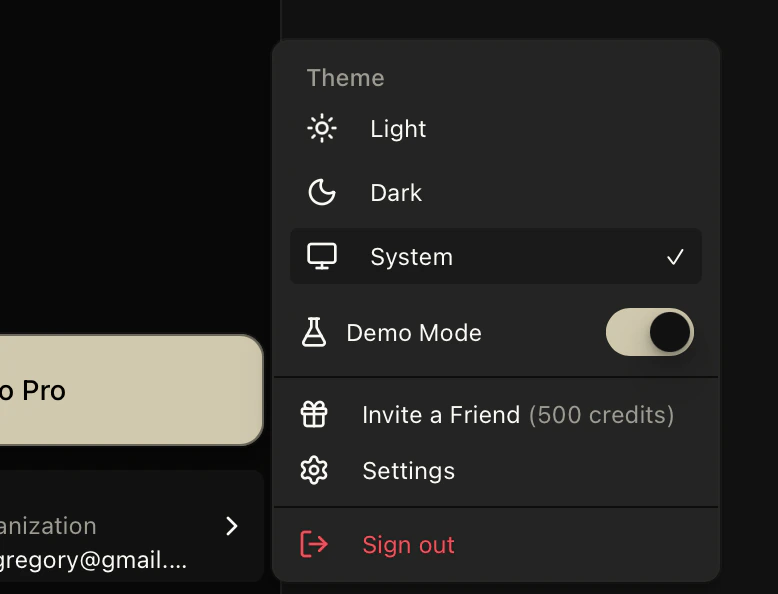
Sidebar footer showing Demo Mode toggle switch

During Onboarding

When you first sign up for Kasava, Demo Mode is enabled automatically after completing onboarding:
  1. Your account is configured with demo data
  2. You’re redirected to the dashboard with a welcome dialog
  3. The welcome dialog shows quick links to explore different features
Welcome dialog showing explore options for My Work, Products, Plans, and AI Chat

Skip to Demo

If you want to explore without completing full onboarding:
1

Start Onboarding

Begin the standard onboarding flow
2

Skip to Demo

Look for the “Skip to Demo” option during onboarding to immediately enter Demo Mode
3

Explore Features

You’ll be taken to the dashboard with sample data loaded
If you skip onboarding to explore demo mode, you’ll need to complete onboarding later to connect your real repositories. The demo banner will prompt you to “Resume Onboarding” when you’re ready.

Demo Mode Indicator

When Demo Mode is active, you’ll see a yellow banner at the top of the application: Demo Mode Active banner with indicator and action buttons The banner displays:
  • “Demo Mode Active” label with an eye icon
  • “Changes are simulated and not saved” message (when navigating away from dashboard)
  • Restart Tour button - Replay the guided demo tour
  • Exit Demo button - Exit demo mode to see your real data
If you skipped onboarding:
  • The banner shows “Complete onboarding to access your real data”
  • A Resume Onboarding button replaces Restart Tour

What You Can Explore

Dashboard

The dashboard in Demo Mode shows:
  • Recent Updates - Latest accomplishments and risks from the ShopFlow project
  • My Work - Sample tasks and issues needing attention
  • Quick Stats - Open issues, pull requests, and bug counts
Click on any stat to see more details in a slide-out panel. Demo dashboard with Recent Updates and My Work panels

Product Views

Navigate to a product from the sidebar to explore:
Overview of the ShopFlow product with key metrics, linked repositories, and platform connections.
Issues - View sample GitHub issues with status, assignees, and labelsPull Requests - See open and merged PRs with review status
Prototypes - Interactive design prototypes linked to the productPlans (PRDs) - Product Requirements Documents including:
  • Mobile App Performance Optimization
  • Checkout Flow Redesign
  • Product Search Enhancement
Roadmap - Timeline view of planned features and milestonesCode Search - Semantic search across the demo codebase
Documentation - Automated documentation updates with approval workflowsTimeline - Activity history and sync eventsBug Reports - Pre-analyzed bugs with console logs, network traces, and AI analysisSupport - Customer support ticket integrationKnowledge - Product knowledge base and context
Updates - AI-generated digests of recent activityGoals - Product goals with progress trackingDecisions - Key product decisions requiring reviewInsights - AI-powered insights about the product

AI Chat

The demo includes sample AI conversations showing:
  • Context-aware responses about the ShopFlow codebase
  • Code references and explanations
  • Multi-turn conversation examples
Navigate to AI Chat from the welcome dialog or sidebar to explore.

Bug Reports

View pre-analyzed bug reports demonstrating Kasava’s bug tracking capabilities:
  • Console Logs - Captured browser console output
  • Network Requests - HTTP request and response traces
  • User Actions - Recorded interaction events
  • AI Analysis - Automated categorization, severity assessment, and suggested fixes
Demo bug report with AI analysis panel

Plans (PRDs)

Explore sample Product Requirements Documents:
PlanStatusDescription
Mobile Performance OptimizationApprovedImproving app startup and rendering performance
Checkout Flow RedesignIn ProgressStreamlining the purchase experience
Product Search EnhancementReviewAdding advanced filtering and AI recommendations
Each Plan demonstrates AI-powered enhancement, structured formatting, and code references.

Switching Between Modes

You can switch between Demo Mode and your real data at any time:

Using the Sidebar Toggle

The easiest way to switch modes is using the Demo Mode toggle at the bottom of the sidebar. Simply click the switch to toggle between demo data and your real data.

Using the Banner

When Demo Mode is active, you can also exit by:
  • Clicking the X button in the demo mode banner
  • Clicking “Exit Demo” in the banner
If you haven’t connected repositories yet, you’ll be prompted to complete onboarding when exiting Demo Mode.
When Demo Mode is off, only your real connected data will be visible. Turn Demo Mode back on anytime using the sidebar toggle to see the sample ShopFlow project again.

Limitations

While Demo Mode is comprehensive, some features behave differently:
FeatureDemo Mode Behavior
Creating itemsSimulated (not saved)
Editing contentSimulated (not saved)
Indexing repositoriesNot available
Platform syncShows cached demo data
AI chatUses sample conversations
Bug recordingNot available
WebhooksNot triggered

Completing Onboarding

When you’re ready to use Kasava with your real projects:
1

Exit Demo Mode or Resume Onboarding

Click “Exit Demo” in the banner, or “Resume Onboarding” if you skipped the initial setup
2

Connect GitHub

Install the Kasava GitHub App to access your repositories
3

Create a Product

Set up your first product and link repositories to it
4

Configure Integrations

Optionally connect Linear, Jira, Asana, or other platforms
Demo Mode is great for onboarding team members. Have them explore in Demo Mode first to understand the interface before connecting real projects.

Frequently Asked Questions

Yes! You can toggle Demo Mode on or off at any time using the switch at the bottom of the sidebar. This lets you revisit the sample ShopFlow project whenever you want to explore features or show Kasava to teammates.
No, demo data is rendered client-side for each user session. Your interactions in Demo Mode don’t affect other users.
Demo Mode is read-only to preserve the sample data experience. All changes are simulated and not persisted.
ShopFlow is a fictional e-commerce platform used as sample data in Demo Mode. It represents a realistic software project with repositories, issues, PRDs, and integrations to showcase Kasava’s capabilities.